What is git? A beginner's guide to version control
If you've ever renamed a file report_final_v3_REAL_FINAL.docx, you already understand the problem git solves. You just didn't have the right tool yet.
The problem git fixes
Imagine you're writing a document. You make changes, save it, then realize two hours later that the version from yesterday was better. If you didn't make a copy, that old version is gone.
Now scale that up. You're working on a project with dozens of files. You want to try something experimental but you're not sure it'll work. You need to go back to how things were last Tuesday. A teammate is editing the same file you are.
Without some system to track all of this, you end up with folders named backup_old and DO_NOT_DELETE and a constant low-grade anxiety that you're going to break something you can't undo.
Git is that system. It tracks every change you make to every file in a project, lets you go back to any previous state, and handles the chaos of multiple people editing things at the same time. It's version control.
Think of it like Google Docs, but for everything
Google Docs has version history. You can click through previous edits, see who changed what, and restore an older version. Git does the same thing, but it works across your entire project, not just one file.
The difference is that git doesn't save automatically. You decide when to take a snapshot. This is actually a good thing. It means each saved point in your history is intentional, with a note explaining what changed and why. Instead of "Itay typed a comma at 3:47pm" you get "Fixed the login bug that was locking out users."
The four concepts that matter
Git has a lot of features. Most of them you won't need for months or years. Here are the four ideas that cover 90% of daily use.
Repository. A repository (or "repo") is just a project folder that git is watching. When you tell git to start tracking a folder, it creates a hidden .git directory inside it where all the history lives. Your files look normal. You edit them normally. Git quietly keeps track in the background.
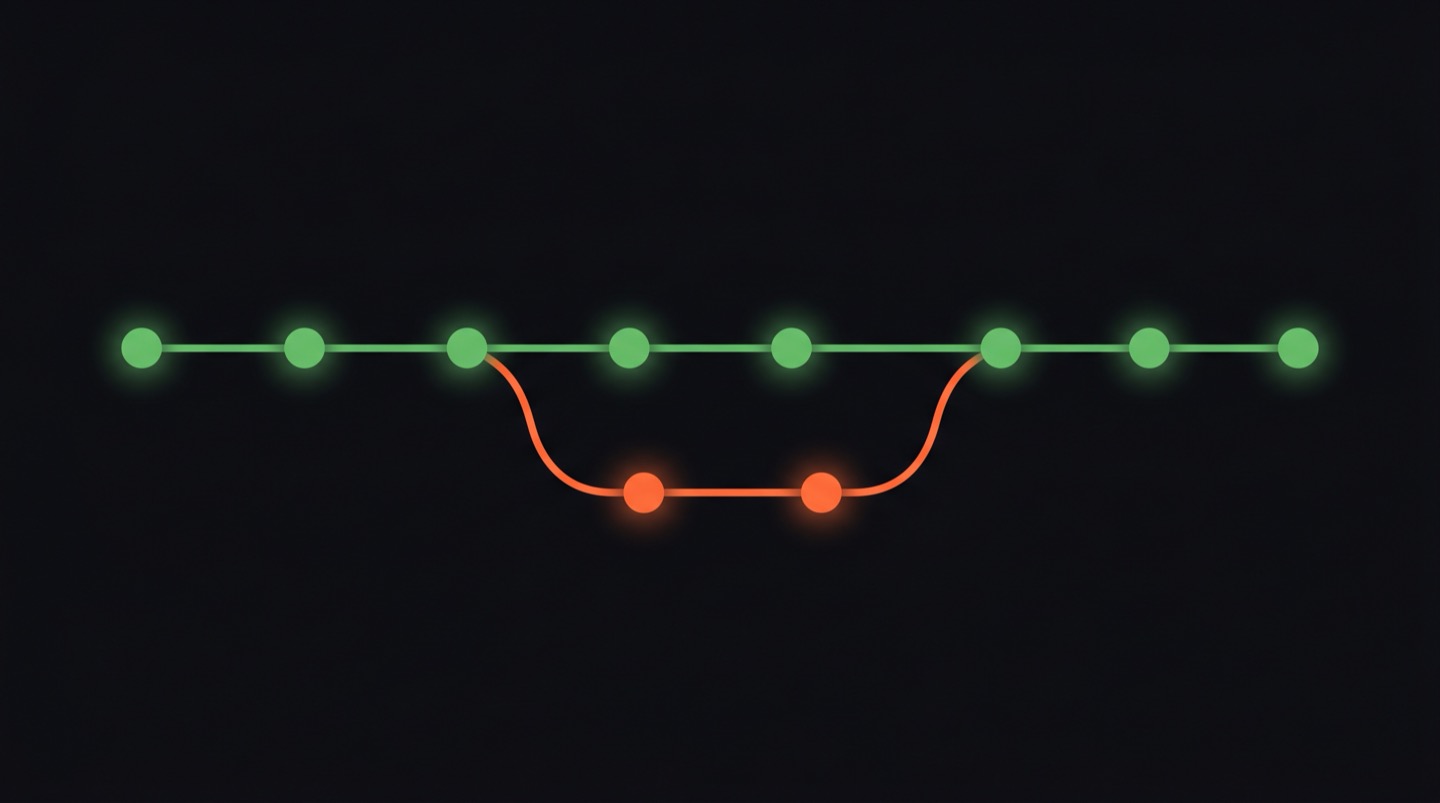
Commit. A commit is a snapshot of your project at a specific moment. When you commit, you're telling git "save this state, I might want to come back to it." Every commit gets a unique ID and a message you write describing what changed. Your project's history is just a chain of these commits, one after another.
Branch. A branch lets you work on something without affecting the main version of your project. Think of it as making a copy where you can experiment freely. If the experiment works, you bring those changes back into the main version. If it doesn't, you throw the branch away and nothing was harmed.
Merge. Merging is how you bring changes from one branch into another. You worked on a feature in a separate branch, it's ready, so you merge it into the main branch. Git is surprisingly good at combining changes from different branches, even when people edited the same files.
Why developers refuse to work without it
I don't know a single professional developer who doesn't use git. Not one. It's not because they enjoy learning tools for the sake of it.
You can undo anything. Broke the whole project? git log shows you every commit you've ever made. Pick one from before things went wrong, restore it, and keep going. That safety net changes how you work. You stop being cautious and start being willing to try things, because the worst case is a 10-second rollback.
You can work on multiple things at once. Need to fix a bug while you're in the middle of building a feature? Make a new branch, fix the bug there, merge it in, then go back to your feature branch. Everything stays organized.
You can collaborate without stepping on each other. Two people can edit the same project, even the same file, and git will figure out how to combine their work. When it can't (because both people changed the exact same line), it asks you to decide. That's called a merge conflict, and it's less scary than it sounds.
Your whole history is there. Six months from now, when you're wondering "why did I write this code?" you can look at the commit message from when you wrote it. Good commit messages are like notes to your future self.
The commands you need to start
Git runs in the terminal. These six commands will get you through your first weeks:
$ git status # What's changed since last commit?
$ git add file.txt # Stage this file for the next commit
$ git commit -m "msg" # Save a snapshot with a message
$ git log # See the history of commits
$ git diff # Show what changed in your files
The flow goes like this: you edit your files, run git status to see what changed, git add the files you want to include, and git commit to save a snapshot. That's the whole cycle. Status, add, commit. Repeat.
git log shows your history. Each entry has a timestamp, a message, and a long hex ID you can use to go back to that specific point. git diff shows you exactly what lines changed in your files, highlighted in red (removed) and green (added).
Where GitHub fits in
Git is the tool. GitHub is a website where people store their git repositories online. Think of git as the engine and GitHub as the parking garage.
When your repository only lives on your computer, it's local. If your laptop dies, everything's gone. GitHub gives you a remote copy in the cloud. You git push your commits up to GitHub, and anyone with access can git pull them down.
GitHub also adds collaboration features on top of git: pull requests (a way to propose changes and get feedback), issues (a to-do list for your project), and a web interface for browsing code and history. Most open-source software lives on GitHub. If you've ever downloaded a free tool or library, the source code was probably hosted there.
The part nobody tells you
Git has a reputation for being confusing, and I won't pretend the learning curve is flat. The terminology is odd. "Staging area" and "HEAD" and "detached HEAD state" sound like they belong in a sci-fi novel. You will, at some point, run a command and have no idea what just happened.
But here's what matters: the basics are simple. init, add, commit, status, log. Five commands. You can use git productively for weeks with just those.
The advanced stuff (rebasing, cherry-picking, reflog) exists for when you need it, and most developers google those commands every single time. Nobody has git fully memorized. That's fine. You learn the basics, use them daily, and pick up the rest as situations come up.
Where to go from here
If you want to learn git properly, from first commit to branching to pushing to GitHub, Zero2Claude has an entire level dedicated to it. Level 4, "Your Code Has a History," covers git across 17 interactive lessons. You'll set up a repo, make commits, create branches, handle merge conflicts, and push to GitHub, all with hands-on practice.
It starts from scratch. No prior git experience, no prior coding experience. Just you and a terminal.
Learn git from scratch
Level 4 covers git in 17 hands-on lessons, from your first commit to pushing to GitHub.
Start Learning Free