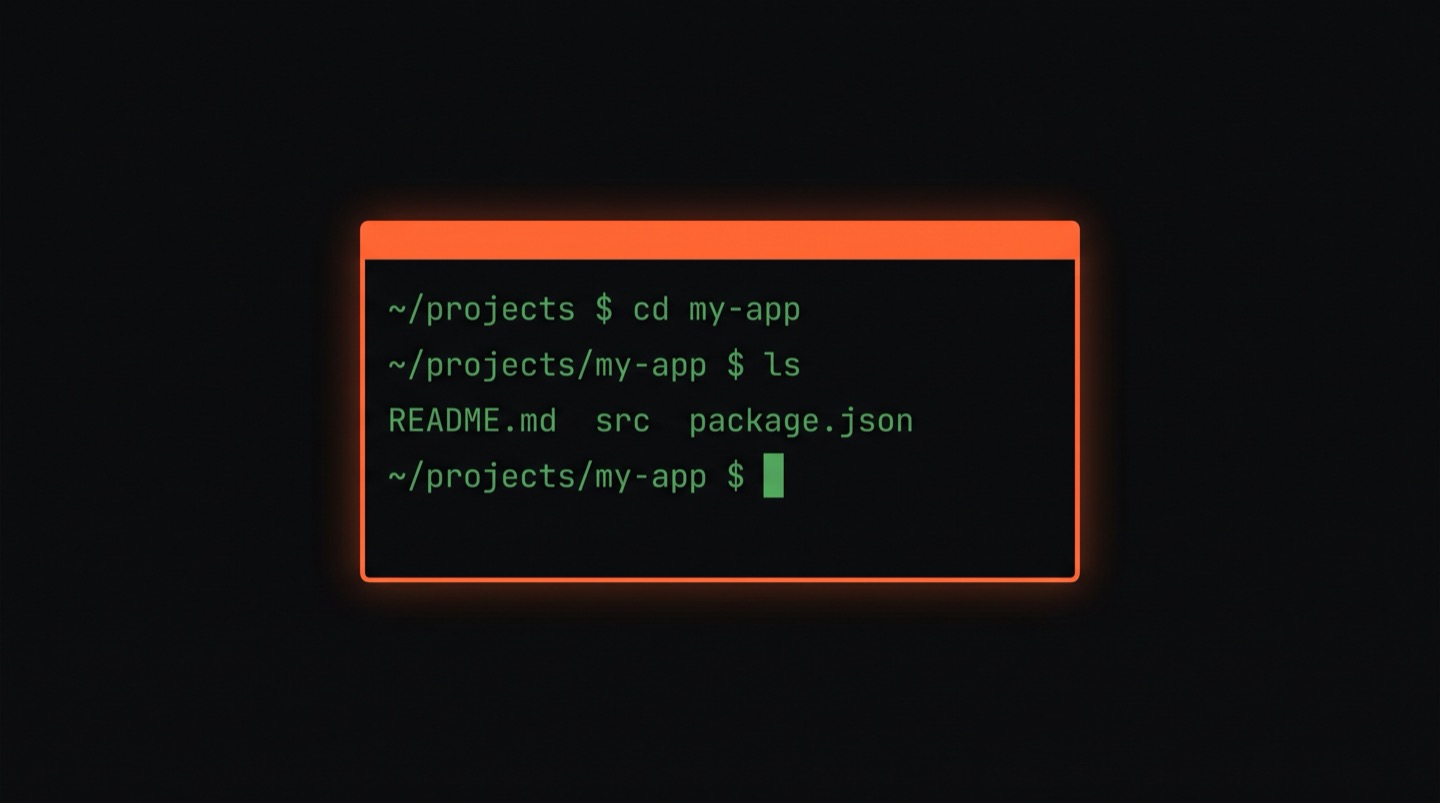
What is a terminal and why should you learn it?
You've probably seen someone type commands into a black screen and thought "I could never do that." I get it. But the terminal is way less complicated than it looks, and learning the basics takes maybe an afternoon.
The terminal in one sentence
A terminal is a text-based way to control your computer. Instead of clicking icons and dragging folders, you type short commands and press Enter. That's really all it is.
You already use your computer with a mouse, through what's called the graphical interface. The terminal does the same things (create files, move folders, install apps, search for text) but by typing instead of clicking. It tends to be faster and more specific, especially once you get the hang of it.
What does it actually look like?
Say you want to create a new folder called "my-project" and put a file inside it. With a mouse, that's right-click, "New Folder," rename it, right-click again, "New File," and so on. In the terminal:
$ touch my-project/index.html
mkdir means "make directory" (create a folder). touch creates an empty file. Two lines, done.
Why bother learning it?
Even if you have zero interest in becoming a "developer," there are practical reasons the terminal is worth picking up.
Every developer tool runs in it. Git, Node.js, Python, Docker, cloud services: they all expect you to type commands. If you want to work in tech at all, the terminal is how you get in the door.
It's faster for repetitive work. Renaming 500 files? One command. Finding every file that mentions "error"? One command. These things take an hour with a mouse and seconds in the terminal.
It barely changes. The macOS and Windows interfaces get redesigned every few years. Buttons move, menus disappear. But cd, ls, and mkdir have worked the same way for decades. What you learn now will still work in 2036.
AI tools run there. Claude Code, an AI that writes and edits code for you, runs inside the terminal. A growing number of AI productivity tools work the same way, with no graphical interface at all.
And honestly, there's something satisfying about knowing what your computer is actually doing instead of just clicking buttons and hoping for the best.
But isn't it scary?
A blank screen with a blinking cursor doesn't exactly feel welcoming. But here's what most tutorials skip over:
You need about 10 commands to get going. Not 100. Ten. Things like cd (change directory), ls (list files), cat (show file contents), and mkdir (make a folder). That covers 90% of what beginners need.
The terminal is also surprisingly honest. It does exactly what you tell it. If you make a mistake, it says so. No hidden behavior, no guessing. That directness takes getting used to, but it's actually reassuring once it clicks.
The 10 commands you actually need
These work on Mac, Linux, and most Windows setups (with WSL or Git Bash):
$ ls # What's in this folder?
$ cd folder # Go into a folder
$ cd .. # Go back up one level
$ mkdir name # Create a new folder
$ touch file # Create a new empty file
$ cat file # Show what's inside a file
$ cp a b # Copy file a to file b
$ mv a b # Move (or rename) a file
$ rm file # Delete a file
That's the whole list. With these you can navigate your computer, organize files, and feel comfortable in the terminal.
What comes after the basics?
Once you're comfortable moving around and creating files, things open up fast:
- Git tracks changes to your files so you never lose work (think of it as an undo button for your entire project)
- curl lets you fetch real data from the internet, right from the terminal
- Node.js runs JavaScript and lets you build actual applications
- Claude Code is an AI that writes, edits, and debugs code from inside your terminal
All of these build on the same foundation: navigating folders, creating files, typing commands. The terminal is where it all starts.
How to start
The best way to learn the terminal is to use it. Not watch videos about it, not read documentation. Just type commands, make mistakes, see what happens.
Zero2Claude is a free interactive course built for exactly that. It starts from absolute zero (no coding experience needed) and teaches you the terminal step by step through hands-on exercises. You go from "what is a folder?" to building real projects with AI, all in your browser.
151 lessons across 17 levels. Completely free.