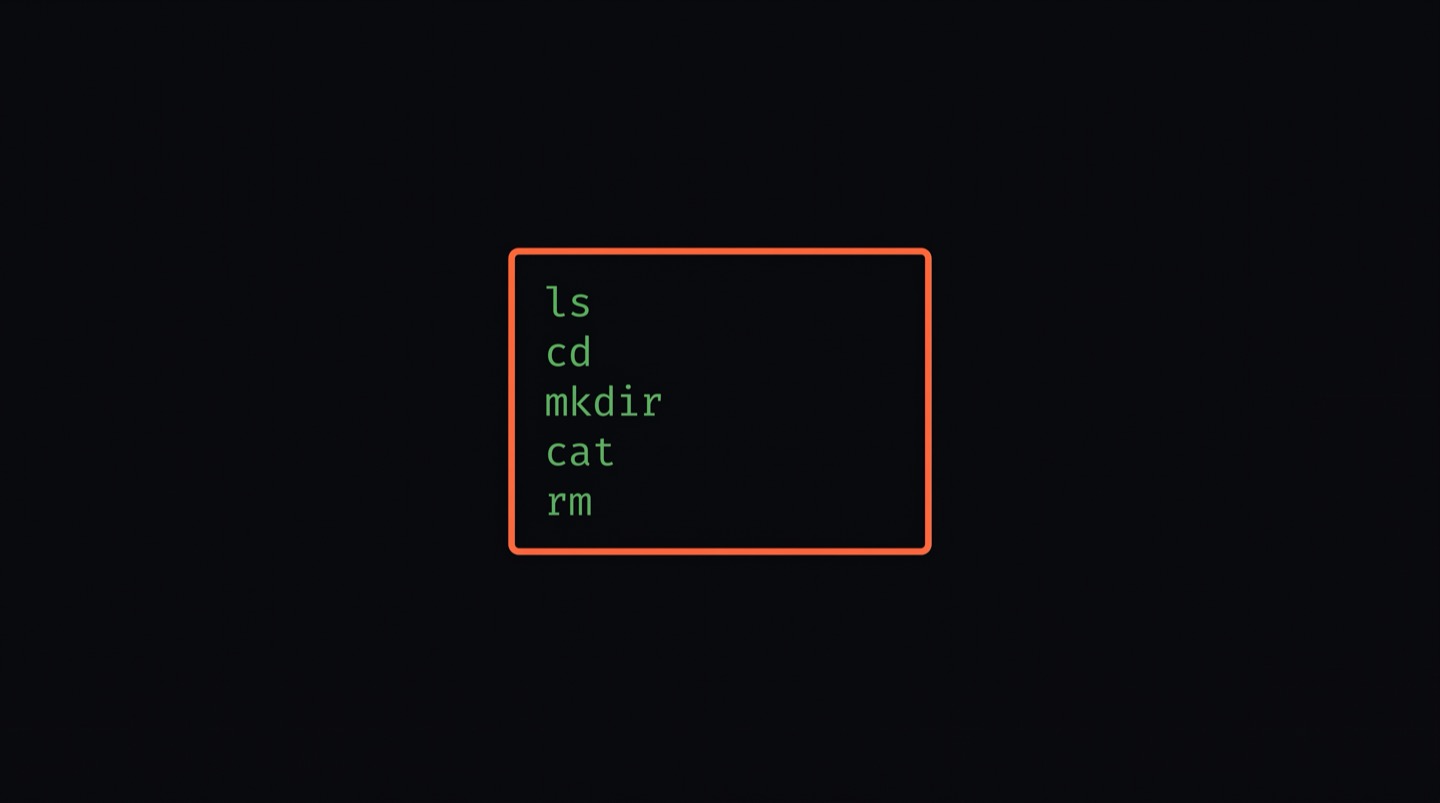
10 terminal commands every beginner should know
Most terminal guides bury you in options and flags before you've even opened the app. This is the opposite of that. Here are the 10 commands I'd teach someone on their first day, with zero assumed knowledge.
I remember staring at a terminal for the first time and feeling like I'd accidentally opened the wrong program. No icons, no menus, just a blinking cursor waiting for me to say something. The good news is that you only need a handful of commands to stop feeling lost. These 10 will get you through your first week and well beyond it.
All of these work on Mac, Linux, and Windows (if you're using WSL or Git Bash). I'll show each command, what it does, and a real example of when you'd reach for it.
pwd
Short for "print working directory." It tells you where you are in your file system right now.
/Users/you/Documents/my-project
This is the command you run when you're confused. You opened a terminal, you're not sure what folder you're looking at, you type pwd. It's your GPS.
ls
Lists everything in your current folder. Files, subfolders, all of it.
README.md index.html images/ styles.css
Think of it as the terminal version of opening a folder in Finder or File Explorer. You'll run this constantly, usually right after cd to see what's inside the folder you just entered.
cd
"Change directory." This is how you move between folders.
$ pwd
/Users/you/Documents/my-project/images
You'll pair this with ls all the time: ls to see what's here, cd to go into a subfolder, ls again to see what's inside that one. To go back up one level, use cd .. (two dots).
mkdir
"Make directory." Creates a new folder.
$ ls
my-new-project/
Starting a new project? mkdir is your first move. I use it dozens of times a week. Naming tip: stick to lowercase and use hyphens instead of spaces. my-project is easier to work with than My Cool Project.
touch
Creates a new, empty file.
$ ls
notes.txt
The file has nothing in it yet. You'd typically create it with touch and then open it in a text editor to start writing. It's also handy for creating configuration files like .gitignore or index.html when setting up a project from scratch.
cat
Shows the contents of a file, printed right in the terminal.
Remember to buy milk
Fix the bug on line 42
Call dentist
When you want a quick look at what's inside a file without opening an editor, cat is the fastest way. It works best for short files. For longer ones, you might eventually learn less, which lets you scroll. But cat gets the job done for now.
cp
Copies a file. You give it the source and the destination.
$ ls
notes.txt notes-backup.txt
Want a backup before you edit something? cp original.txt backup.txt and you're covered. You can also copy files into different folders: cp report.pdf archive/ puts a copy of the file into the archive folder.
mv
Moves a file to a new location. Also doubles as a rename command.
$ mv report.pdf documents/
The first example renames a file. The second moves it into the documents folder. Same command, two jobs. There's no separate "rename" command in the terminal. mv handles both.
rm
Deletes a file. This one deserves a warning: there is no trash can. When you rm something, it's gone.
Be careful with this. Double-check the filename before you press Enter. If you need to delete a folder and everything inside it, you'd use rm -r foldername, but I'd wait until you're more comfortable before doing that regularly. Start by only deleting single files you're sure about.
man
Short for "manual." Shows the built-in documentation for any command.
This opens a scrollable help page. Press q to exit. The output can feel dense at first, but it's useful once you know a command exists and want to see what options it has. For example, man ls will show you that ls -la gives a detailed view with file sizes and hidden files. You won't need man every day, but it's good to know it's there. The terminal has its own help system built in.
Putting it together
Here's what a real session might look like. Say you're starting a new project:
/Users/you/Documents
$ mkdir my-website
$ cd my-website
$ touch index.html style.css
$ ls
index.html style.css
$ mkdir images
$ ls
images/ index.html style.css
Six commands, and you've got a project folder with files and a subfolder. That took about 10 seconds. Try doing that with right-click menus.
These 10 commands are genuinely all you need to navigate the terminal with confidence. Everything else builds on top of them. Git uses cd and ls constantly. Node.js projects start with mkdir and touch. Even AI coding tools like Claude Code assume you can move around your file system.
If you want to practice these in a structured way, Zero2Claude teaches them through interactive exercises. 151 lessons across 17 levels, starting from "what is a file?" all the way up to building real projects with AI. It's free, and you can do it in your browser.
Ready to try these yourself?
Practice every command in an interactive terminal. No setup, no cost.
Start Learning Free