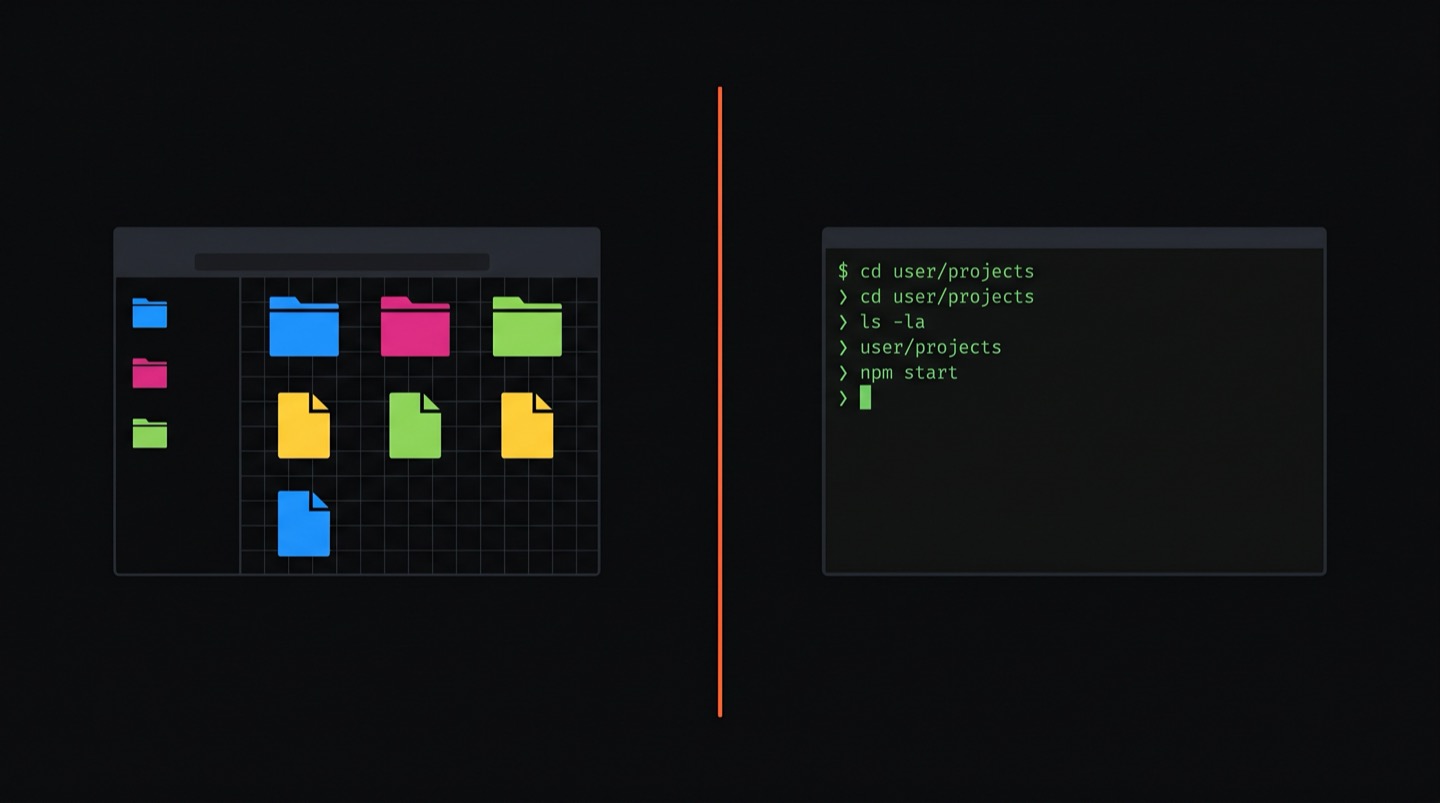
Command line vs GUI: when to use which
People treat this like a religious debate. It isn't one. The command line and graphical interfaces are different tools, and the answer to "which is better?" is almost always "depends on what you're doing."
Two ways to talk to your computer
A GUI (graphical user interface) is what you're used to. Windows, icons, menus, drag and drop. You see things on screen and click on them. It's visual and intuitive, which is why every phone and personal computer defaults to it.
A CLI (command line interface) is a text prompt where you type instructions. No icons, no windows. You tell the computer what to do with words, and it tells you what happened with words back. It looks old-fashioned. It's not.
Both are just ways of giving instructions to the same machine. The difference is how you give them.
Where graphical interfaces win
GUIs are better when the task is inherently visual. Photo editing is the obvious example. You need to see the image while you work on it. No amount of terminal wizardry will replace looking at a photo and dragging a slider to adjust brightness.
Design tools, video editing, spreadsheets with charts, browsing the web, managing your email. These are GUI territory. The visual feedback is the whole point. Trying to do graphic design from a text prompt would be like trying to paint with a keyboard.
GUIs are also better for tasks you do rarely. If you format a USB drive once a year, the graphical Disk Utility is fine. You don't need to memorize a command you'll use twice.
Where the command line wins
The command line gets interesting when you need to do something more than once. Or when you need precision. Or when you're working with code.
Say you have a folder with 200 photos from a trip, and you want to rename them all from IMG_3847.jpg to rome-001.jpg, rome-002.jpg, and so on. In Finder, that's 200 clicks and a lot of typing. In the terminal:
One line. Done in under a second. And if you need to do it again next month with a different folder, you just change the prefix.
Or say you're working on a project and you need to find every file that contains the word "password." In a GUI, you'd open each file and use Ctrl+F. In the terminal:
./config/database.yml: password: <%= ENV["DB_PASSWORD"] %>
./docs/setup.md:Set your database password in .env
Every match, every file, instantly. That's not a small advantage. When you're working on a codebase with hundreds of files, this kind of search saves real time every single day.
Git only makes sense in the terminal
Git is how developers track changes to code. There are graphical Git tools, and some of them are decent. But every developer I know who's been at it for more than a year ends up in the terminal for Git. The GUI tools hide too much. When something goes wrong (and it will), you need to see exactly what's happening.
$ git diff
$ git add .
$ git commit -m "fix login redirect bug"
Four commands. You can see your changes, stage them, and save them with a message. No clicking through tabs, no wondering which button does what. It's direct, and once you learn it, it's faster than any GUI alternative.
Automation is a CLI superpower
Here's where the command line really pulls ahead. You can chain commands together, write scripts, and automate work that would take hours by hand.
I once had to check whether a list of 50 URLs was still live. Clicking through each one in a browser? Maybe 20 minutes of mindless work. In the terminal:
200 https://example.com
404 https://example.com/old-page
301 https://example.com/moved
A few seconds, every URL checked, results saved. You can't automate clicking. You can always automate typing.
AI tools live in the terminal
This is a newer development, but it matters. Claude Code, which is an AI that can write, edit, and debug code for you, runs entirely in the terminal. So does GitHub Copilot's CLI. These tools don't have graphical interfaces because they don't need them. They read your files, understand your project, and make changes directly.
If you're comfortable in the terminal, you can use these tools immediately. If you're not, there's a learning curve before you can even start. The terminal is becoming the place where the most powerful AI tools live.
The honest answer
You'll use both. Everyone does. I use a GUI for browsing, email, Slack, design reviews, and watching videos. I use the terminal for writing code, managing files in projects, running servers, deploying applications, and working with Git.
The question isn't which one is better. It's whether you know both well enough to pick the right one for the task. Most people only know the GUI side, which means they're doing some tasks the slow way without realizing it.
Learning the command line doesn't mean abandoning your mouse. It means having a second option, one that's often faster, always scriptable, and required for most technical work. It's a skill multiplier. The things you already know how to do get easier, and a whole category of things you couldn't do before becomes possible.
The basics take an afternoon. Seriously. Ten commands and you're functional. A week of practice and you'll start reaching for the terminal by instinct for certain tasks. A month in, you'll wonder how you managed without it.
Ready to learn the command line?
Zero2Claude teaches you from absolute zero. 151 lessons, 17 levels, completely free. No prior experience needed.
Start Learning Free